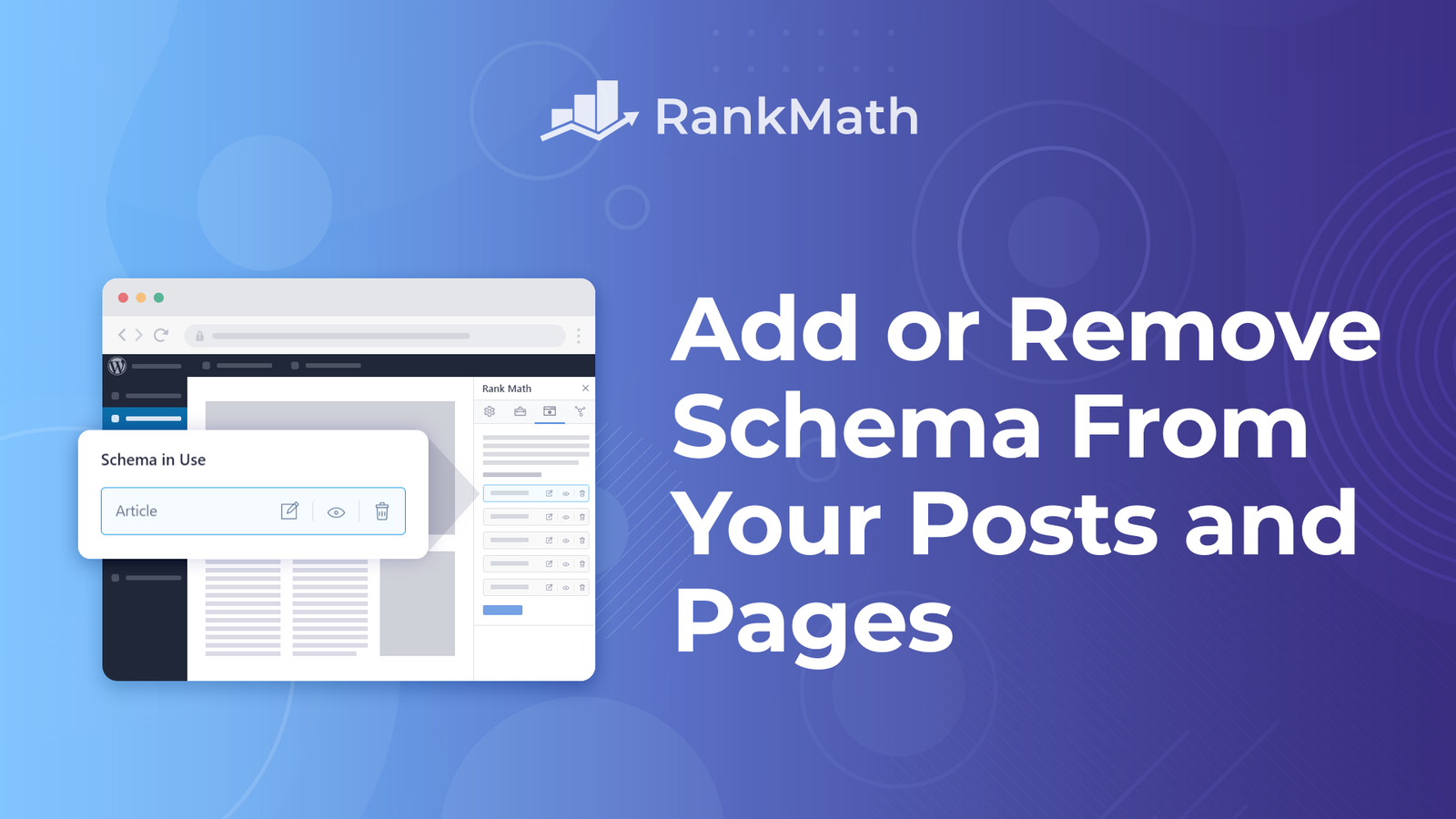
Schema helps search engines understand your page. Rank Math makes it easy to add, change, or remove it. You do not need to write code for most tasks.
This guide is for WordPress site owners who use Rank Math. You will learn how to add schema to one post, remove it from one page, and turn it off for your whole site. You will also learn what to check after a website redesign.
Quick Answer
To add schema in Rank Math, open a post, click the Schema tab, click Schema Generator, pick a type, and save. To remove it, open the same Schema tab, delete the schema, and update the post. To remove all Rank Math schema from your site, disable the Schema module.
What Is Schema in Rank Math?
Schema is code that labels your content. It tells search engines if a page is an article, a product, a recipe, or something else. Search engines can then show richer results, such as star ratings or FAQs.
Rank Math is a WordPress SEO plugin. It adds schema for you in a format called JSON-LD. It also has a Schema Generator where you pick the type and fill in the fields.
Good schema does not guarantee rich results. It only gives search engines clearer information. Google decides what to show.
Before You Start
Check these three things first:
- The Schema module is on. Go to Rank Math SEO → Dashboard → Modules. Rank Math’s Schema module must be enabled on your site.
- You can see the Rank Math box. In the Classic Editor, open Screen Options. Then select Rank Math SEO if the box is missing.
- You know your plan. The Free and PRO versions work a little differently. See the table below.
Free vs PRO: What Is Different?
| Feature | Rank Math Free | Rank Math PRO |
|---|---|---|
| Add one schema type to a post | Yes | Yes |
| Add several schema types to one post | No | Yes |
| Custom Schema builder | Locked | Yes |
| Schema Templates | No | Yes |
| Bulk remove schema | No | Yes |
On the Free version, the Custom Schema tab shows up but does not work, and it asks you to upgrade. PRO lets you add multiple schema types to one post. PRO also has Bulk Actions to remove schema from many posts at once.
How to Add Schema in Rank Math
You can add schema to a single post or page. You can also set a default for a whole post type.
Add Schema to One Post or Page
- Open the post or page in the WordPress editor.
- Open the Rank Math panel. In the block editor, it sits in the sidebar. In the Classic Editor, it sits below the content.
- Click the Schema tab.
- Click Schema Generator.
- Pick a schema type, such as Article, Product, Recipe, or FAQ.
- Fill in the fields.
- Click Save for this Post, then update the post.
Rank Math then adds the schema markup to your content automatically.
Expected result: Your schema now shows in the Schema tab. You can test the page with Google’s Rich Results Test.
Common mistake: Choosing a schema type that does not match the page. A blog post should not use Product schema. Match the type to the real content.
[Image idea: Screenshot of the Rank Math Schema tab with the Schema Generator button highlighted.]
Change an Existing Schema Type
You may want to swap one type for another. On Rank Math Free, you must delete the existing schema before you add a new one. On PRO, you can keep the old one and add another.
Set a Default Schema for a Post Type
You can set a default so every new post gets the same type. Go to Rank Math SEO → Titles & Meta. Pick Posts or Pages. Then choose the default schema type there.
This saves time. It also keeps your site consistent. You can still change the schema on any single post later.
Add Custom Schema (PRO)
Sometimes the built-in types are not enough. Rank Math PRO has a Custom Schema Generator for these cases. Open the Schema Generator and click the Custom Schema tab.
The builder has a Code Validation tab that shows the JSON-LD it creates, so you can check it for errors.
Use Schema Templates (PRO)
A Schema Template lets you build schema once and reuse it. You can set a display condition, such as all single posts, and Rank Math adds the schema to all of them.
This is helpful for local business details or any repeated data.
How to Remove Schema in Rank Math
There are several ways to remove schema. Pick the one that fits your goal.
| Goal | Best Method |
|---|---|
| Remove schema from one post or page | Delete it in the Schema tab |
| Remove schema from many posts | Use Bulk Actions (PRO) |
| Remove schema from product categories | Use Titles & Meta settings |
| Remove schema from one specific page by code | Use a filter snippet |
| Remove all Rank Math schema from the site | Disable the Schema module |
Remove Schema From One Post or Page
- Open the post or page.
- Click the Schema tab in the Rank Math panel.
- Delete the schema type you see there.
- Save and update the post.
- Reload the page to confirm the change.
You can remove all schema types added to a post under the Schema tab this way.
Expected result: The Schema tab is empty for that post.
Common mistake: Forgetting to update the post. The change only applies after you save.
Remove Schema From Many Posts at Once (PRO)
Opening each post takes a long time on a big site. Rank Math PRO has Bulk Actions that remove schema from many posts or pages at once. Use this after a large website redesign or content cleanup.
Remove Schema From Product Category Pages
Product category pages can get Product schema by mistake. That implies every product in the category is the same, which is not true.
Here is the setting to check:
- Go to Rank Math SEO → Titles & Meta → Product Categories.
- Scroll to the product category section.
- Find Remove Snippet Data and turn it on.
This option is on by default. If it is off, turn it back on.
Remove Schema From One Page With Code
Sometimes you need to remove schema from a single page, such as the homepage. Rank Math supports a code filter for this. A common way is the rank_math/json_ld filter.
add_filter( 'rank_math/json_ld', function( $data, $jsonld ) {
    if ( is_front_page() ) {
        return [];
    }
    return $data;
}, 99, 2 );
Place the snippet in a child theme’s functions file or a code snippets plugin. Rank Math also suggests a rank-math.php file in your theme folder for filters like this. Test it on a staging site first. A small typo in PHP can break your site.
Remove All Rank Math Schema From Your Site
To remove the schema Rank Math generates altogether, go to Rank Math SEO → Dashboard and disable the Schema module.
Use this only when you have a clear reason. For example, you may be using another schema plugin. Running two plugins that output the same schema can cause duplicates and conflicts.
When Should You Remove Schema?
Remove schema when:
- The schema type does not match the page.
- Two plugins add the same schema.
- You are testing to find a structured data conflict.
- A page has low value and does not need markup.
- A redesign changed the page, and the old schema no longer fits.
Removing schema is also a common step when you troubleshoot structured data conflicts.
Keep schema when it is accurate and helps describe the page. Do not remove it just because you are unsure how it works.
Schema After a Website Redesign
A website redesign can break schema without warning. New page builders, themes, and templates can change how content appears. Old schema may then describe content that no longer exists.
After a redesign, run this check:
- Open your top pages in Google’s Rich Results Test.
- Look for errors and warnings.
- Confirm each page has the right type.
- Check for duplicate schema from your theme and Rank Math.
- Update or remove schema on pages that changed.
This protects your SEO. Search engines trust markup that matches the visible page.
How to Check Your Schema
After any change, test the page. Use Google’s Rich Results Test or the Schema Markup Validator from Schema.org. Paste in the page URL and read the results.
You can also view the page source and search for application/ld+json. That shows the raw schema on the page.
Common Mistakes to Avoid
- Using the wrong type. A service page marked as a Product confuses search engines.
- Adding schema for content users cannot see. Schema should match what is on the page.
- Running two schema plugins. This often creates duplicate markup.
- Not testing after changes. Always check the page after you save.
- Removing schema site-wide too fast. Try a fix on one page first.
Best Practices
- Pick the schema type that best matches the page.
- Fill in every required field.
- Keep schema details in sync with the page text.
- Test pages after each change.
- Review schema after plugin updates or a redesign.
- Use defaults in Titles & Meta to stay consistent.
Frequently Asked Questions
Can I use Rank Math schema without coding?
Yes. The Schema Generator uses forms and menus. You only need code for special cases, like removing schema from one page with a filter.
Does Rank Math Free allow more than one schema per post?
No. Adding multiple schema types to one post needs Rank Math PRO.
Why is the Schema tab missing?
The Schema module is likely off. Go to Rank Math SEO → Dashboard → Modules and turn it on. In the Classic Editor, also check Screen Options.
Will removing schema hurt my SEO?
It can reduce your chances of rich results. Removing wrong or duplicate schema often helps. Removing correct schema usually does not help.
How long until schema changes show in Google?
It depends on when Google crawls the page. It can take days or weeks. You can ask Google to recrawl the page in Search Console.
Can I add schema to a site that is not on WordPress?
Yes, with a workaround. You can build the schema with Rank Math on a local WordPress install, copy the code from the Code Validation tab, and paste it into your site’s HTML or Google Tag Manager.
Final Thoughts
Adding or removing schema in Rank Math takes only a few clicks. Use the Schema tab for single pages, Bulk Actions for many pages, and the Schema module switch for the whole site. Always match the type to the page and test after every change.
Download Here: Rankmath Pro
